ClickUp automation turns your project management tool into a system that runs itself. Instead of manually assigning tasks, sending status updates, and copying data to spreadsheets, you set the rules once and ClickUp — connected to your other tools — does the work automatically. This guide shows you exactly which ClickUp automation workflows to build, in what order, and how.
What is ClickUp automation?
ClickUp automation is the practice of connecting ClickUp to your other tools — Slack, Gmail, Google Sheets, HubSpot — so that actions in one app automatically trigger actions everywhere else. A task gets marked done in ClickUp, and Slack notifies the team. A new deal closes in HubSpot, and a ClickUp task is created for the fulfilment team. No copy-paste, no manual messages.
ClickUp has its own built-in automation rules for simple triggers within the platform. But when you need to connect ClickUp to external apps — sending emails, updating a CRM, posting to Slack, logging to Google Sheets — you need a workflow automation layer like workflow automationbuilt on top of ClickUp's API.

Without automation, ClickUp becomes another thing you have to maintain manually
Why automate ClickUp?
ClickUp is one of the most powerful project management tools available — but that power only pays off when the data inside it stays current. The problem is that keeping ClickUp updated requires constant manual intervention: changing statuses, assigning tasks, notifying teammates, logging updates elsewhere.
Research from McKinsey found that knowledge workers spend an average of 28% of their week managing email and nearly 20% tracking down information. For teams using ClickUp, a significant portion of that time is spent on status updates that could be automated. Here's what that looks like in practice:
- A task gets completed — someone has to Slack the team and update the client
- A new lead comes in — someone has to manually create a ClickUp task for the sales team
- A deadline passes — someone has to remember to send a reminder
- A sprint ends — someone has to compile the summary and report it
ClickUp automation eliminates every one of these manual steps. The platform reacts in real time, so your team always knows what's happening without anyone having to tell them.
7 ClickUp automation workflows to build
1. Auto-assign tasks based on type or tag
When a new task is created in a specific ClickUp list, automatically assign it to the right person based on the task type or tags. A “Design” tag routes to your designer. A “Copy” tag routes to your writer. This removes the coordination overhead of manually reviewing and assigning every incoming task.
Trigger: New task created in ClickUp list
Condition: Task tag equals “Design”
Action:Assign task to designer + post Slack message “New design task: [task name]”
2. Slack notifications for status changes
When a task status changes in ClickUp — from “In Progress” to “Review” or from “Review” to “Done” — automatically send a Slack message to the relevant channel. Your team stays informed without anyone having to manually post updates.
This is the highest-ROI ClickUp automation for most teams. It eliminates the entire category of “what's the status on this?” questions because everyone gets notified automatically when something moves.
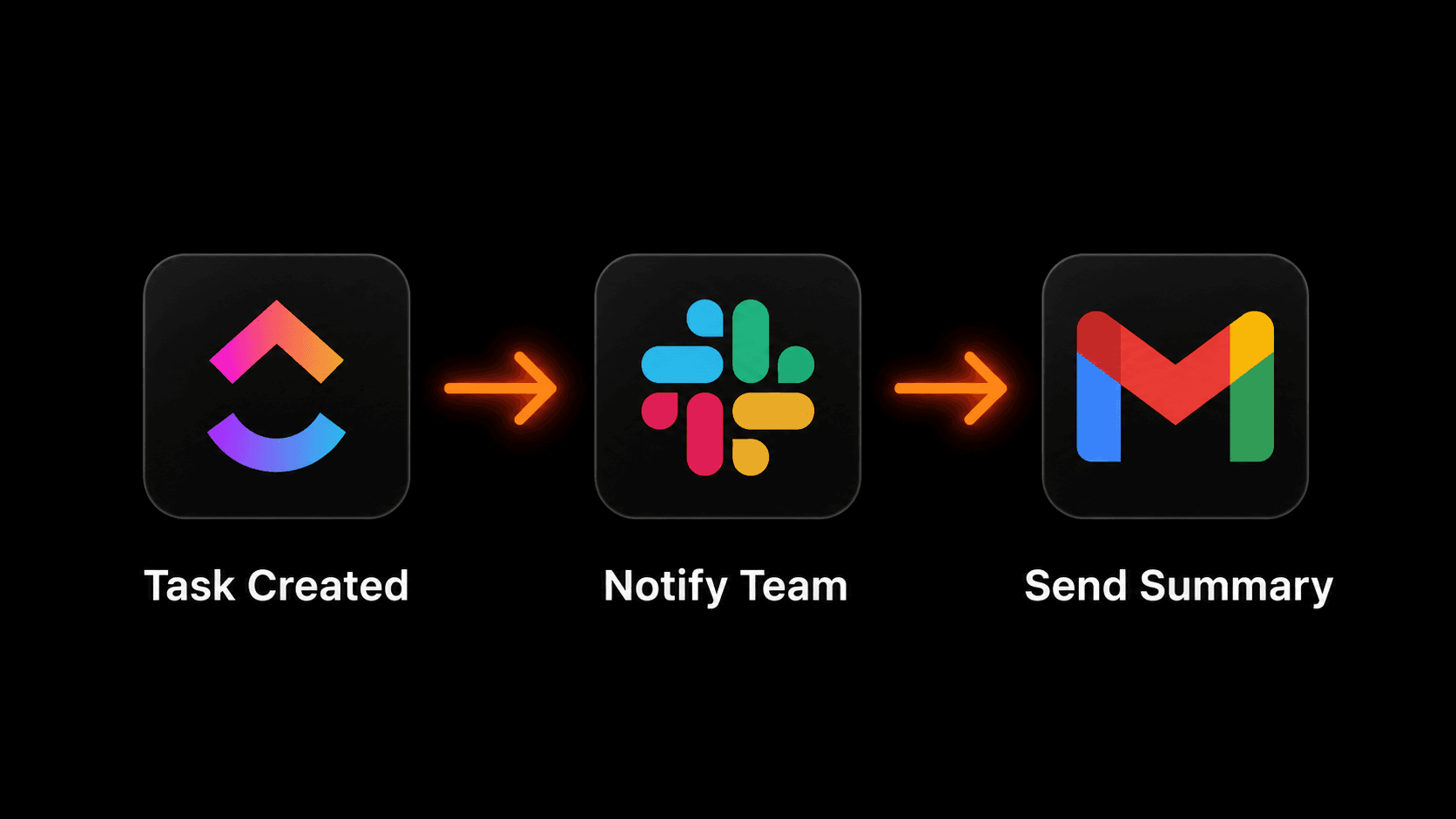
A ClickUp automation flow: task created → notify team in Slack → send summary to Gmail
3. Email clients when their project task moves to Done
When a client-facing task in ClickUp is marked Done, automatically send the client a brief email update. You configure the template once — something like “Quick update: [task name] has been completed. Next step: [next task].” The client feels informed and your team skips the manual follow-up email.
This works especially well for agencies and service businesses where clients track deliverables. It creates the impression of a highly organised team without any extra work.
4. Log ClickUp task completions to Google Sheets
Every time a task is marked Done in ClickUp, automatically log the task name, assignee, list, and completion date to a Google Sheet. Over time this builds a real-time record of everything your team completes — useful for weekly reports, billing, and performance reviews.
This pairs perfectly with a weekly reporting automation that pulls from that same Google Sheet every Friday morning and compiles it into a summary email.
5. Create ClickUp tasks from Gmail
When a specific type of email arrives in Gmail — a client request, a support ticket, a new lead — automatically create a ClickUp task with the email subject as the task name, the sender's details in the description, and the appropriate assignee and due date. Nothing falls through the cracks because every important email becomes a tracked task.
This is the automation that connects your inbox to your project management system. For more ways to automate your Gmail inbox, see our dedicated guide.
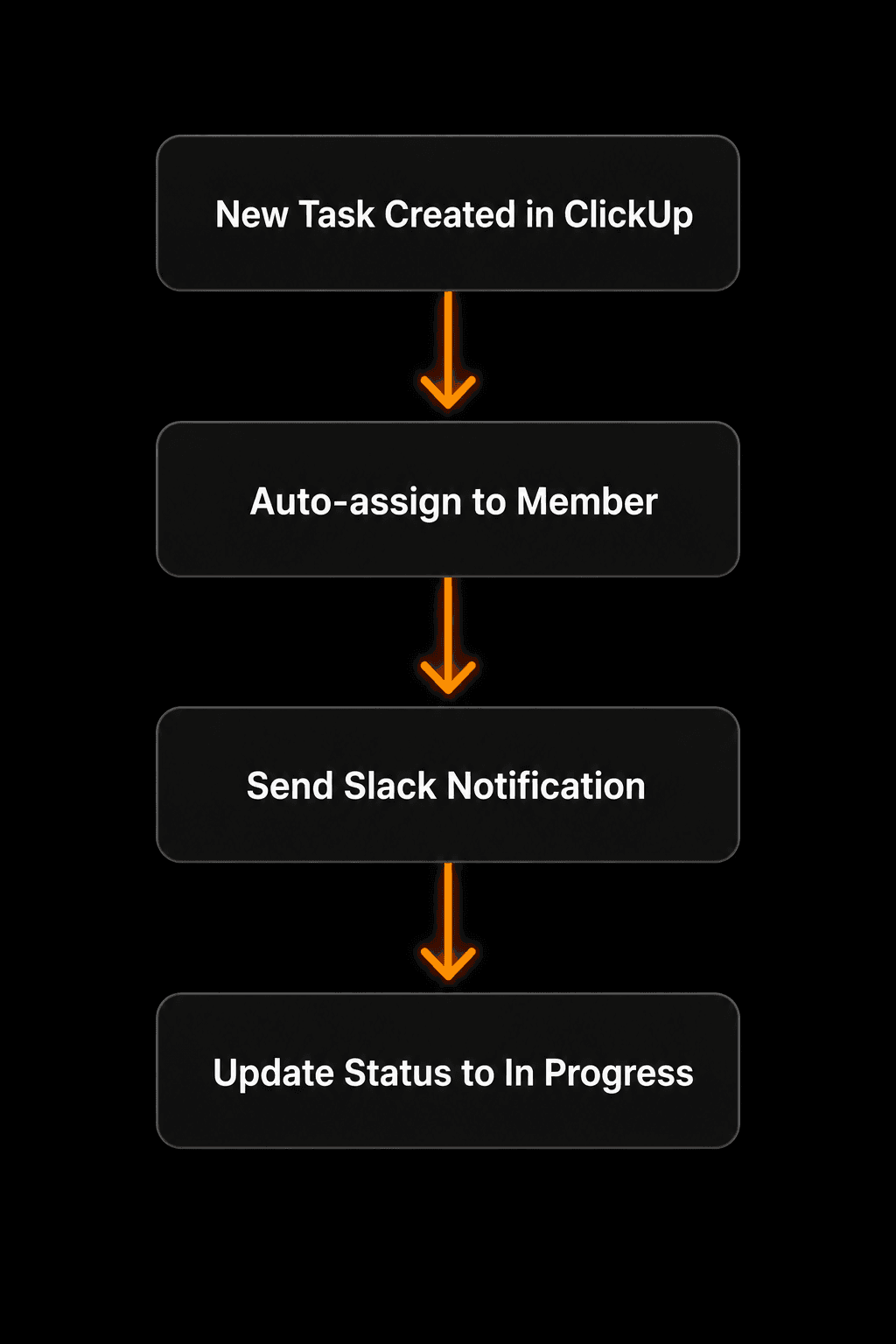
A complete ClickUp automation workflow — from task creation to team notification
6. Deadline reminders for overdue tasks
Set up a daily scheduled workflow that checks ClickUp for tasks where the due date has passed and the status is not Done. For each overdue task, send a Slack message to the assignee and optionally to their manager. This replaces the painful manual process of checking who's behind and chasing them individually.
Trigger: Every weekday at 9am
Action: Query ClickUp for overdue tasks
Action:For each result, send Slack DM to assignee: “Overdue: [task name] was due [date]”
7. Connect ClickUp to HubSpot for sales-to-delivery handoffs
When a deal is marked Closed-Won in HubSpot, automatically create a ClickUp task (or full task list from a template) in your delivery workspace. Include the client name, deal value, and close date from HubSpot in the task description. Your delivery team gets notified the moment sales closes — no handoff meeting required.
This is particularly powerful for teams that struggle with the gap between sales closing a deal and the delivery team knowing about it. For more on connecting your CRM to automation, see our guide to CRM automation.
| Workflow | Time saved/week | Difficulty |
|---|---|---|
| Auto-assign tasks | 30–60 min | Easy |
| Slack status notifications | 1–2 hrs | Easy |
| Client email on Done | 2–3 hrs | Easy |
| Log completions to Sheets | 1 hr | Easy |
| Create tasks from Gmail | 2–4 hrs | Medium |
| Overdue task reminders | 1–2 hrs | Medium |
| HubSpot → ClickUp handoff | 3–5 hrs | Medium |
How to set up ClickUp automation with Vendarwon Flow
Vendarwon Flow connects to ClickUp via its API, so you can trigger workflows from ClickUp events or create/update ClickUp tasks from any other app. The setup takes under 5 minutes:
- Connect ClickUp. Go to Integrations and add your ClickUp API token. You'll find this in ClickUp → Settings → Apps → API.
- Describe your workflow. Type what you want to happen in plain English — “When a task is marked Done in my Development list, send a Slack message to #general with the task name and assignee.”
- Review the generated workflow. Vendarwon Flow's AI builds the workflow and shows you the visual node graph before anything runs.
- Activate. Toggle it on. The workflow runs automatically from that point forward.
Unlike ClickUp's native automations (which only work within ClickUp), Vendarwon Flow connects ClickUp to any of the 42+ other apps your team uses. That's where the real time savings come from. For an overview of the approach, see our step-by-step guide to building AI workflows.
Frequently asked questions
Does ClickUp have built-in automation?
Yes — ClickUp's native automations handle simple within-platform rules like “when status changes, reassign.” But they don't connect to external apps like Slack, Gmail, or HubSpot. For cross-app automation, you need a tool like Vendarwon Flow.
Can I trigger a ClickUp automation from another app?
Yes. With Vendarwon Flow you can create, update, or query ClickUp tasks from any trigger — a new email, a form submission, a HubSpot deal closing, a scheduled cron job, or a webhook from any other app.
What ClickUp data can I use in my automations?
Task name, description, status, assignee, due date, list, space, tags, priority, and custom fields are all available to read and write via the ClickUp API. This means your automation can make intelligent decisions — like routing tasks to different people based on the priority field.
Is ClickUp automation safe to use for client-facing workflows?
Yes — as long as you test thoroughly before activating. Vendarwon Flow lets you run workflows in test mode first, so you can confirm the email content, Slack message, and data mapping are correct before it runs live with real client data.
How is this different from Zapier's ClickUp integration?
Zapier supports ClickUp but charges per task (Zap run) and limits multi-step workflows on lower plans. Vendarwon Flow uses execution-based pricing with AI workflow generation — you describe what you want in plain English and the workflow is built for you, with conditions, loops, and branching all supported. See our full comparison of Zapier alternatives.