Notion is one of the most flexible productivity tools available — but its power is wasted if you're manually copying data into it from other tools. Every new lead from your website, every task from a client email, every event from a form submission should appear in the right Notion database automatically. Here's how to build the automation layer that keeps your Notion workspace current without any manual data entry.
Why Manual Notion Updates Don't Scale
Notion databases are only useful if the data in them is current and complete. A CRM database that's three days behind, a task board that misses half the requests coming through email, a project tracker that only gets updated when someone remembers — these don't save time, they create a false sense of organisation while important items fall through the cracks.
The solution is to treat Notion as a destination hub, not a source of truth that requires manual maintenance. Every system that generates data your team needs should push that data to Notion automatically. Your website form, your email inbox, your CRM, your project management tool — all feeding Notion in real time.
The Notion API: What's Possible
Notion's official API supports creating pages, updating database entries, querying databases, and appending blocks to existing pages. This means you can programmatically add a new row to any Notion database, update any property (text, number, date, select, multi-select, person, relation), and create fully formatted page content inside a database entry — all from an automation workflow.
The API requires a Notion integration to be connected to your workspace and the specific databases you want to write to. This is a one-time setup: create the integration in Notion settings, share the database with the integration, and use the integration token in your automation platform credentials.
Common Notion Automation Use Cases
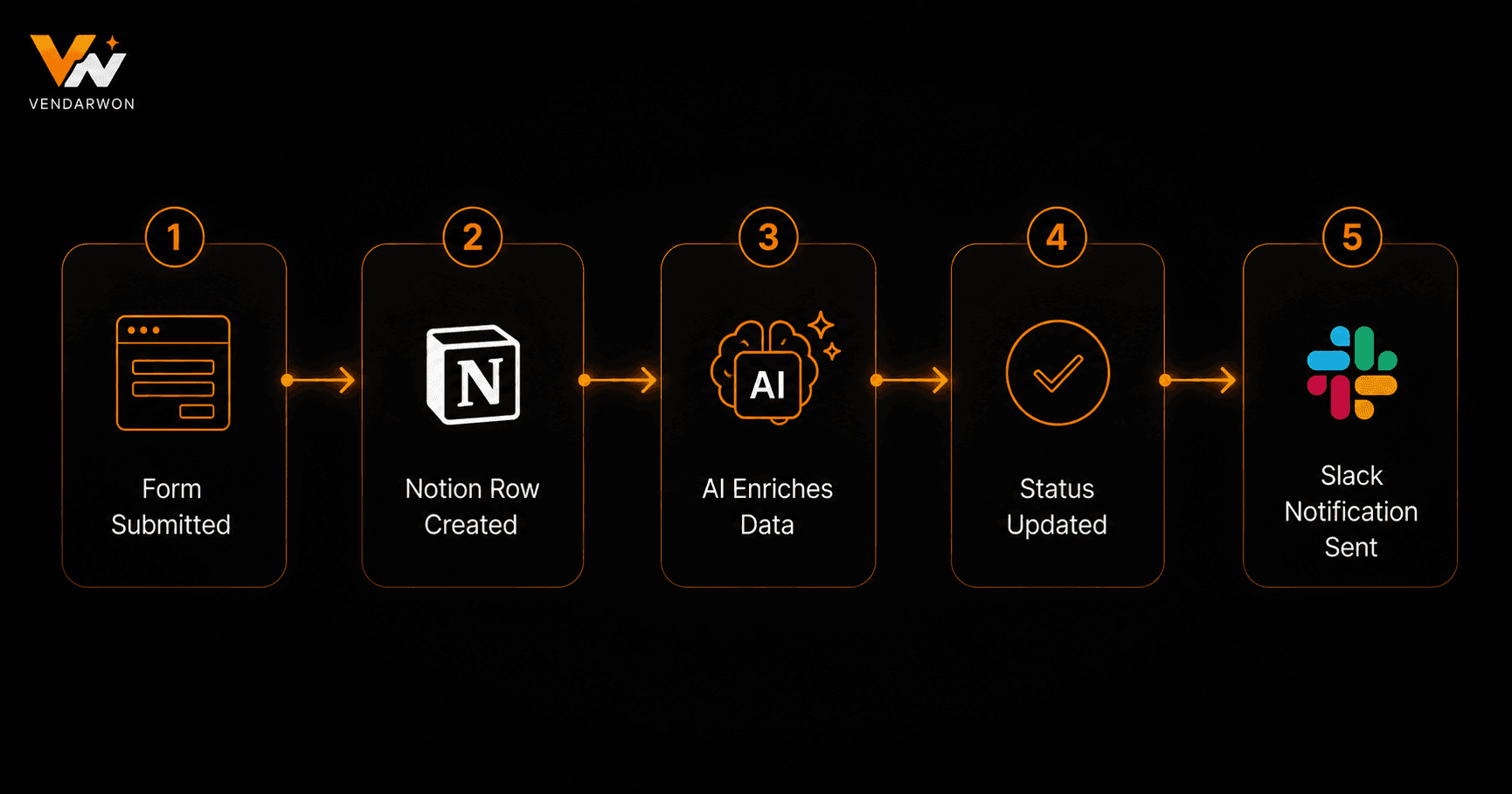
The most impactful Notion automations fall into a few categories. Lead capture: when a visitor submits your website contact form (Typeform, Tally, or a plain webhook), create a new entry in your Leads database with their name, email, company, and message — and notify your team in Slack. Task creation: when someone sends an email with “task:” in the subject line, use AI to parse the task details and create a new entry in your Tasks database with the right assignee, deadline, and priority.
Content pipeline: when a new blog post is published on your website, create a content tracking entry in Notion with the URL, publish date, and category — and trigger a social media post. Meeting notes: after every meeting, the AI-generated summary is automatically appended to the relevant project page in Notion. Each of these patterns is a workflow you can build in under 30 minutes.
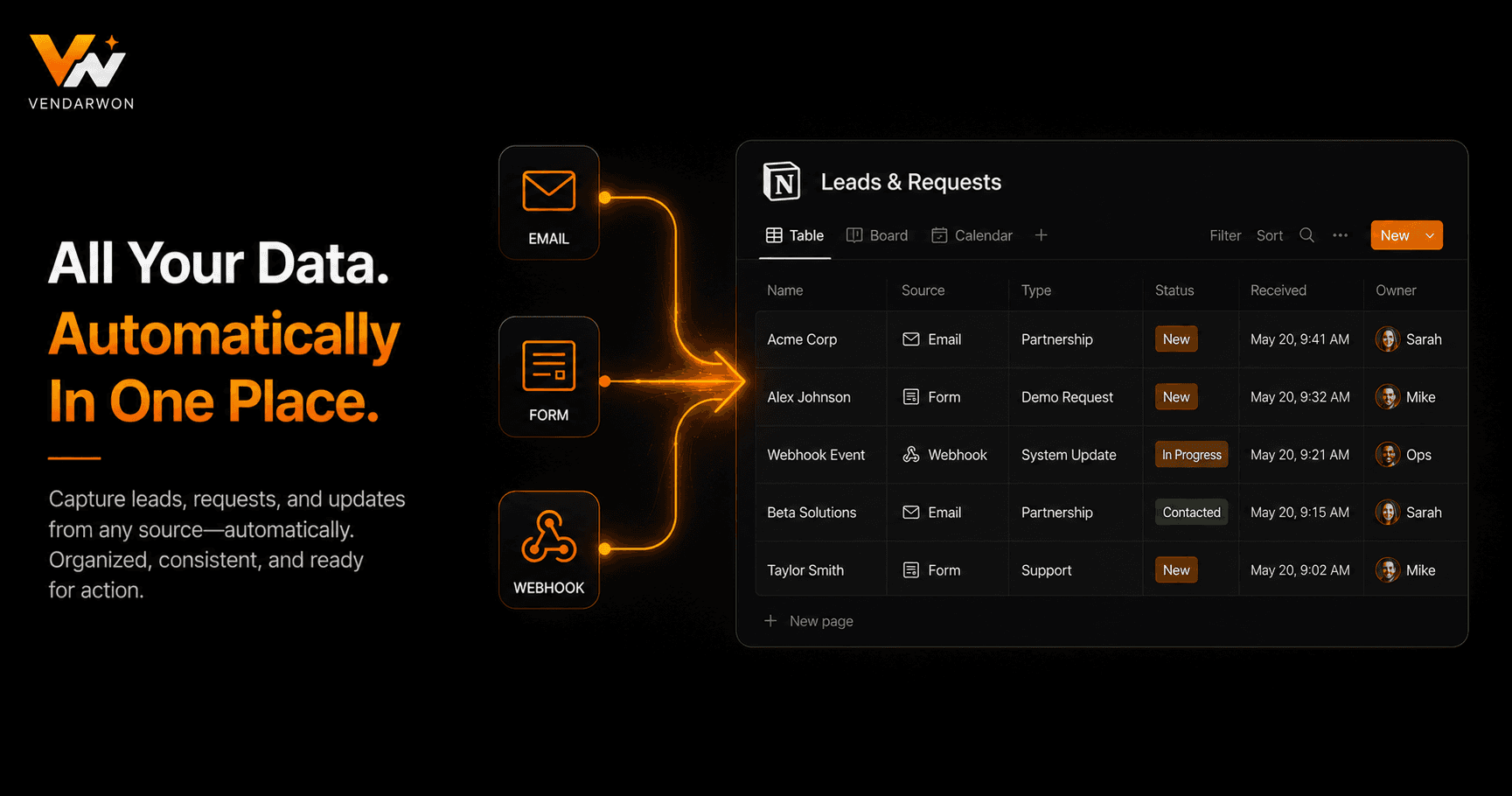
Multiple trigger sources — forms, emails, webhooks, CRM events — feeding automatically into the right Notion databases
Connecting Forms to Notion
Form submissions are the most common Notion automation trigger. When someone fills in your contact form, intake questionnaire, or feedback survey, the data should land in Notion instantly. Most form tools (Typeform, Tally, Jotform, Google Forms) support webhook notifications on submission — your automation receives the form data and maps each field to the corresponding Notion database property.
The field mapping step is critical: the form field names rarely match the Notion property names exactly. Build an explicit mapping in your workflow that transforms the raw form payload into the structured Notion API call. Include error handling so that if the Notion API call fails, you receive a Slack alert and the submission data is preserved for retry.
Email-to-Notion Workflows
Email is a constant source of tasks, leads, and information that your team needs to track. An email-to-Notion workflow monitors your inbox for emails matching specific criteria — sender domain, subject keywords, or labels — and creates Notion entries from them. The AI layer extracts the relevant data: from a client email, extract the project name, requested change, and deadline; from a sales inquiry, extract the company, contact name, and use case.
Vendarwon Flow supports Gmail as a trigger, letting you build workflows that fire every time a new email arrives matching your filter, process it with AI, and create the Notion entry — all without opening your inbox.
Keeping Notion Synced With Your CRM
Many teams maintain a client or deal database in both Notion (for project management context) and a CRM (for sales pipeline context). Bidirectional sync between these two is powerful but complex. Start with one-directional sync: when a deal moves to “closed won” in your CRM, automatically create a client project entry in Notion with the relevant details. This removes the manual handoff between sales and delivery.
FAQ
Does Notion have built-in automations?
Notion has basic native automations (button triggers, property-change triggers) but they're limited in scope and don't connect to external tools. For cross-platform automation — connecting your website, email, CRM, and other tools to Notion — you need an external automation platform.
Can I update existing Notion pages, or only create new ones?
Both. The Notion API supports creating new database pages and updating existing page properties. To update an existing page, you first need to query the database to find the page ID, then send an update request with the new property values.
What's the rate limit on the Notion API?
Notion's API rate limit is 3 requests per second per integration. For most automation workflows, this is sufficient. If you need to bulk-create many entries simultaneously, build a throttling mechanism in your workflow to stay within the limit.
Can I add formatted content (not just database fields) to Notion pages?
Yes. The Notion API supports appending blocks to a page — paragraphs, headings, bullet lists, code blocks, and more. This is how meeting summary automations add formatted notes to a page, not just fill in database properties.