Trello automation connects your kanban boards to the rest of your stack. When a card moves, a task finishes, or a deadline arrives, Trello automation fires actions in Slack, Gmail, Google Sheets, and anywhere else your team works. This guide walks through the five Trello automations that save the most time — and how to build them without writing a line of code.
What is Trello automation?
Trello automation uses triggers — a card moved to a list, a due date reached, a label added — to fire automatic actions inside or outside Trello. Those actions can be as simple as adding a checklist to a new card, or as complex as sending a client email, logging data to Google Sheets, and posting a Slack update all at once.
Trello's own built-in automation tool is called Butler. It handles simple board-level rules well. But Butler cannot reach outside Trello — it cannot send emails, post to Slack, update a CRM, or log rows to Google Sheets. That's where a workflow automation layer like Vendarwon Flow extends what Trello can do.

A Trello board without automation: visually organised, but manually maintained
The problem with managing Trello manually
Trello boards are great at giving your team a visual overview of work in progress. But keeping that overview accurate requires constant manual effort. Cards have to be dragged. Teammates have to be tagged. Clients have to be emailed. Data has to be copied somewhere else for reporting.
For a team of five handling 30–50 cards per week, this overhead can easily consume 3–4 hours of collective time. That's time spent on administration, not on the work itself. Trello automation eliminates the administration layer entirely so the board stays accurate without anyone maintaining it.
The pattern is the same whether you're a solo freelancer, an agency team, or an ops team inside a larger company: Trello tells you what's happening, but someone still has to act on it. Automation makes the acting happen automatically.
5 Trello automation workflows to build
1. Notify the team in Slack when a card moves to Done
When a Trello card is moved to your “Done” list, send a Slack message to the relevant channel with the card name, the person who moved it, and a link to the card. This is the single highest-impact Trello automation for teams — it replaces the manual habit of pasting Slack updates every time something is finished.
Trigger: Trello card moved to list “Done”
Action:Post Slack message to #team: “✅ [card name] is done — moved by [member name]”
2. Email clients when their deliverable is complete
For client-facing Trello boards, automatically send a personalised email when a card labelled “Client” moves to Done. The email can reference the card name, include a link to the deliverable, and set expectations for the next step. Clients feel proactively communicated with — you never have to remember to email them.
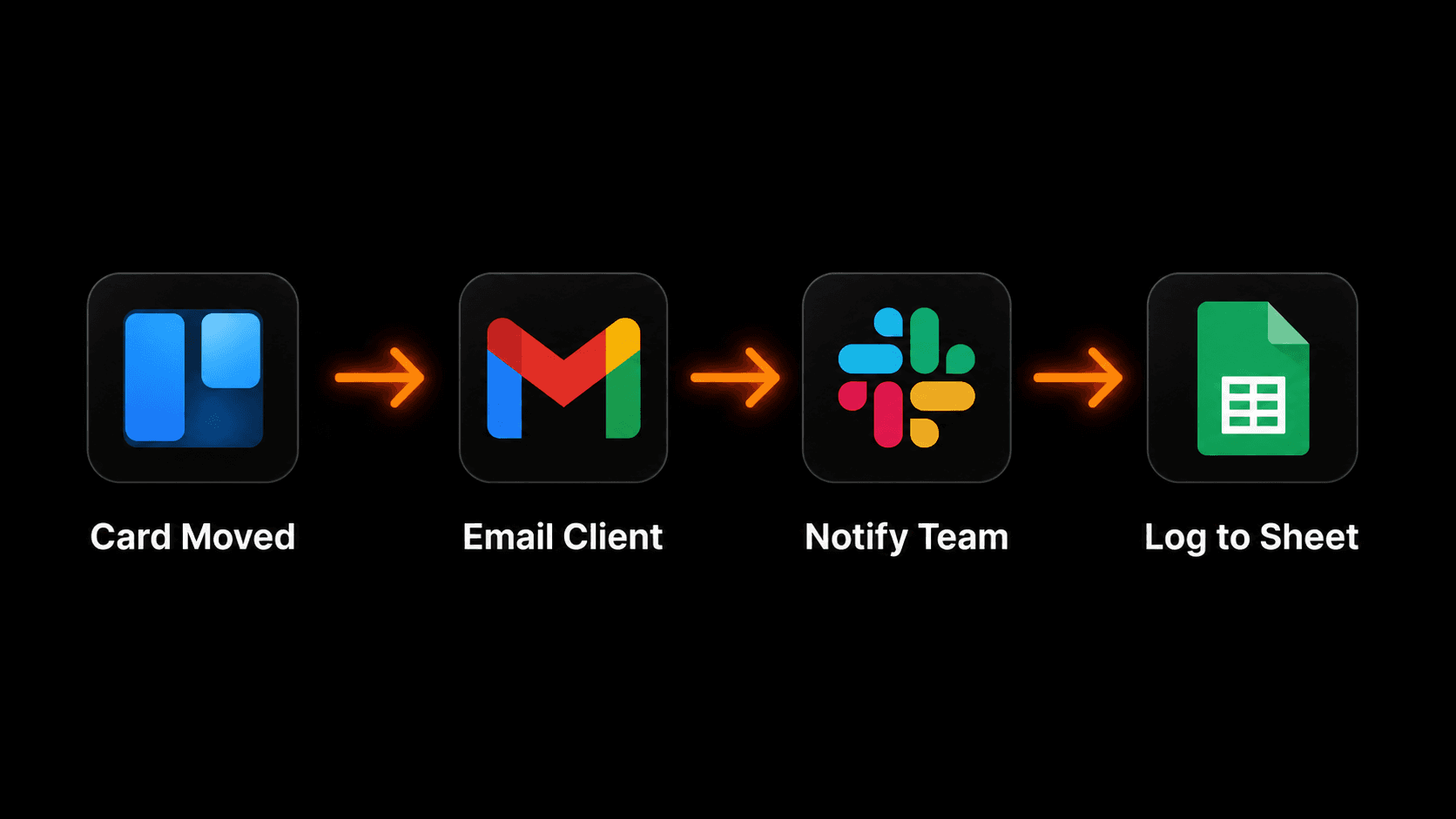
One Trello card move triggers emails to clients, Slack alerts, and a Google Sheets log
3. Log completed cards to Google Sheets for reporting
Every time a card moves to Done, log the card name, assignee, list it came from, and completion date to a Google Sheet. This builds a living record of everything your team ships — useful for weekly reviews, client billing, and sprint retrospectives.
This pairs well with a weekly automated report that queries that same sheet every Monday and sends a summary to your leadership team or client.
Unlike manually copying card data, the Google Sheets log is always complete and accurate. You can filter by assignee, date range, or board to pull exactly the numbers you need for any report.
4. Create Trello cards from incoming emails
When a specific type of email lands in Gmail — a client request, a bug report, a new lead — automatically create a Trello card in the right list with the email subject as the card name and the email body in the card description. Assign it to the right person based on who the email was addressed to.
This automation eliminates the gap between “email received” and “work tracked.” For support teams especially, it means no request gets lost in the inbox without a card being created. For more on this pattern, see our guide to automating your Gmail inbox.
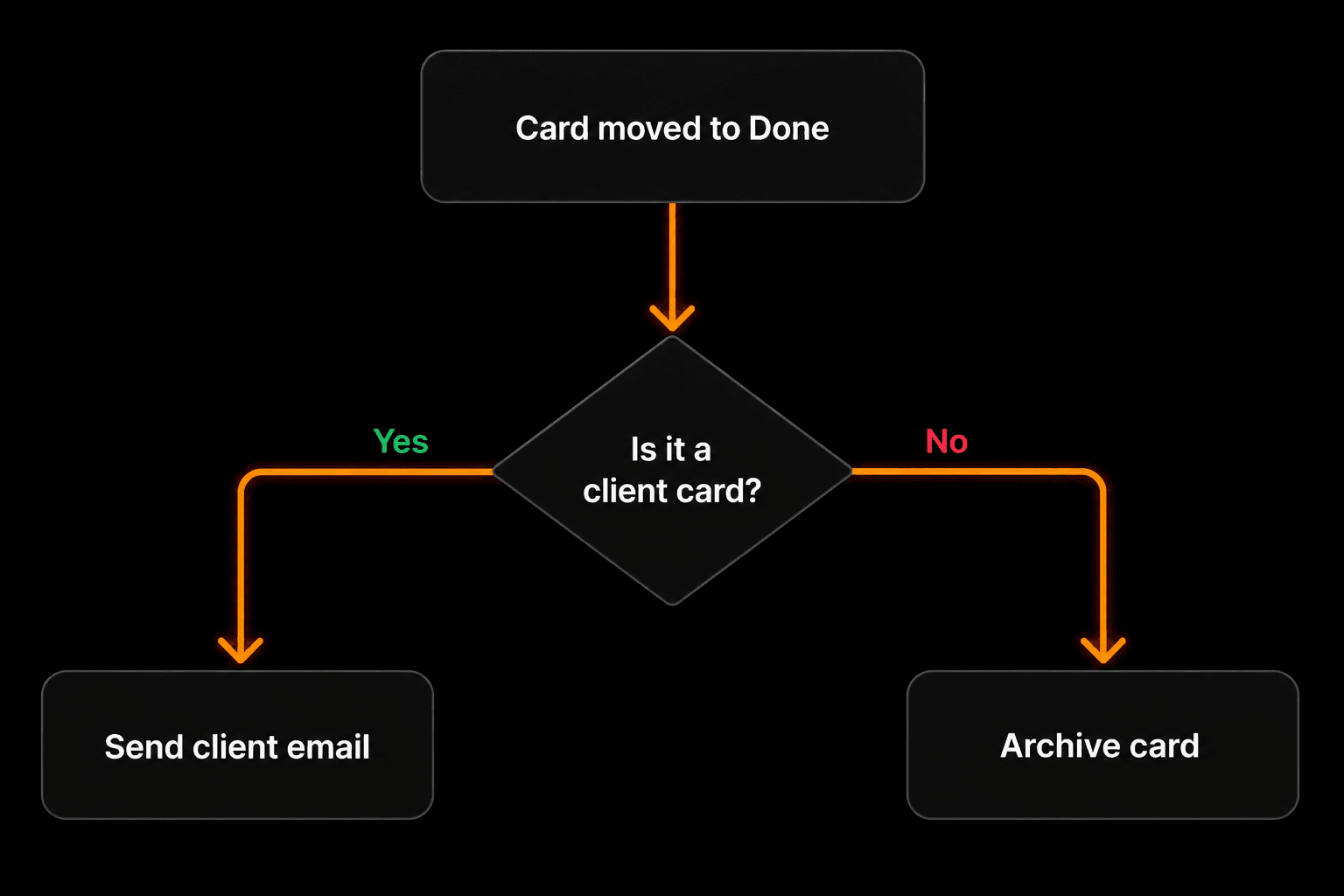
Conditional Trello automation: different actions based on card label
5. Auto-archive old completed cards to keep boards clean
A scheduled weekly automation that queries your Trello Done list and archives any card that has been sitting there for more than 14 days. Your board stays clean without anyone manually archiving cards. You can also set a threshold — only archive if the card has no open checklist items remaining.
Trigger: Every Sunday at 10pm
Action: Get all cards in Done list older than 14 days
Action: Archive each card
Action:Post a Slack summary: “🗂️ Archived [N] completed cards this week”
Trello Butler vs external automation — which should you use?
Trello's built-in Butler automation is excellent for board-level rules: move a card when a checklist is complete, add a due date when a label is applied, assign a member when a card enters a specific list. If your automation stays inside Trello, use Butler — it's free and doesn't require any external setup.
External automation tools like Vendarwon Flow become necessary the moment you need to cross app boundaries. As soon as the action needs to happen in Slack, Gmail, Google Sheets, HubSpot, or any other tool, Butler can't help — and that's where the most valuable Trello automations live.
| Capability | Trello Butler | Vendarwon Flow |
|---|---|---|
| Within-Trello rules | ✓ Free | ✓ Supported |
| Send Slack messages | ✗ No | ✓ Yes |
| Send emails via Gmail | ✗ No | ✓ Yes |
| Log to Google Sheets | ✗ No | ✓ Yes |
| Update HubSpot / CRM | ✗ No | ✓ Yes |
| AI-generated actions | ✗ No | ✓ Yes |
| Plain English setup | ✗ Manual config | ✓ Describe it |
How to build Trello automation with Vendarwon Flow
Vendarwon Flow connects to Trello via the Trello API. You can use Trello card events as triggers, or create/update Trello cards from any other app. Setup takes under 5 minutes:
- Connect Trello. Go to Integrations, add your Trello API key and token. Both are available at trello.com/app-key.
- Describe the workflow. Type “When a Trello card moves to Done in my Client Projects board, send the client an email and log it to my Google Sheet.”
- Review the AI-generated workflow. Vendarwon Flow builds the node graph — check the trigger, condition (if any), and action steps.
- Activate. Turn it on and watch it run automatically from the first card move.
If you're new to workflow automation, start with the beginner's guide to workflow automation to understand triggers, actions, and conditions before building your first Trello workflow.
Frequently asked questions
Does Trello have native automation?
Yes — Trello Butler handles within-Trello rules like auto-assigning members, adding checklists, and moving cards based on labels or due dates. Butler is free on all plans. For cross-app automation (Slack, Gmail, Google Sheets, CRMs), you need an external tool like Vendarwon Flow.
Can I trigger a Trello automation from another app?
Yes. With Vendarwon Flow, any event — a new email, a form submission, a HubSpot deal, a scheduled cron — can create or update a Trello card automatically. The trigger doesn't have to come from Trello.
How do I get Trello card data into an automation?
Vendarwon Flow reads card name, description, list, labels, members, due date, and checklist status from the Trello API. All of these fields can be used in conditions (only act on cards with a specific label) or passed into actions (include the card name in the Slack message or email).
Can I use Trello automation for client-facing workflows?
Yes — but test thoroughly first. Use Vendarwon Flow's test mode to verify email content and data mapping before activating. You don't want a half-formed email going to a client. Always confirm the template looks right with real card data before going live.
How many Trello automations can I run?
On Vendarwon Flow's free plan you get 100 executions per month — enough to evaluate whether automation is right for your team. Starter ($9/month) gives you 2,000 executions, which covers most small teams running several Trello workflows daily. See our automation pricing guide for a full breakdown.