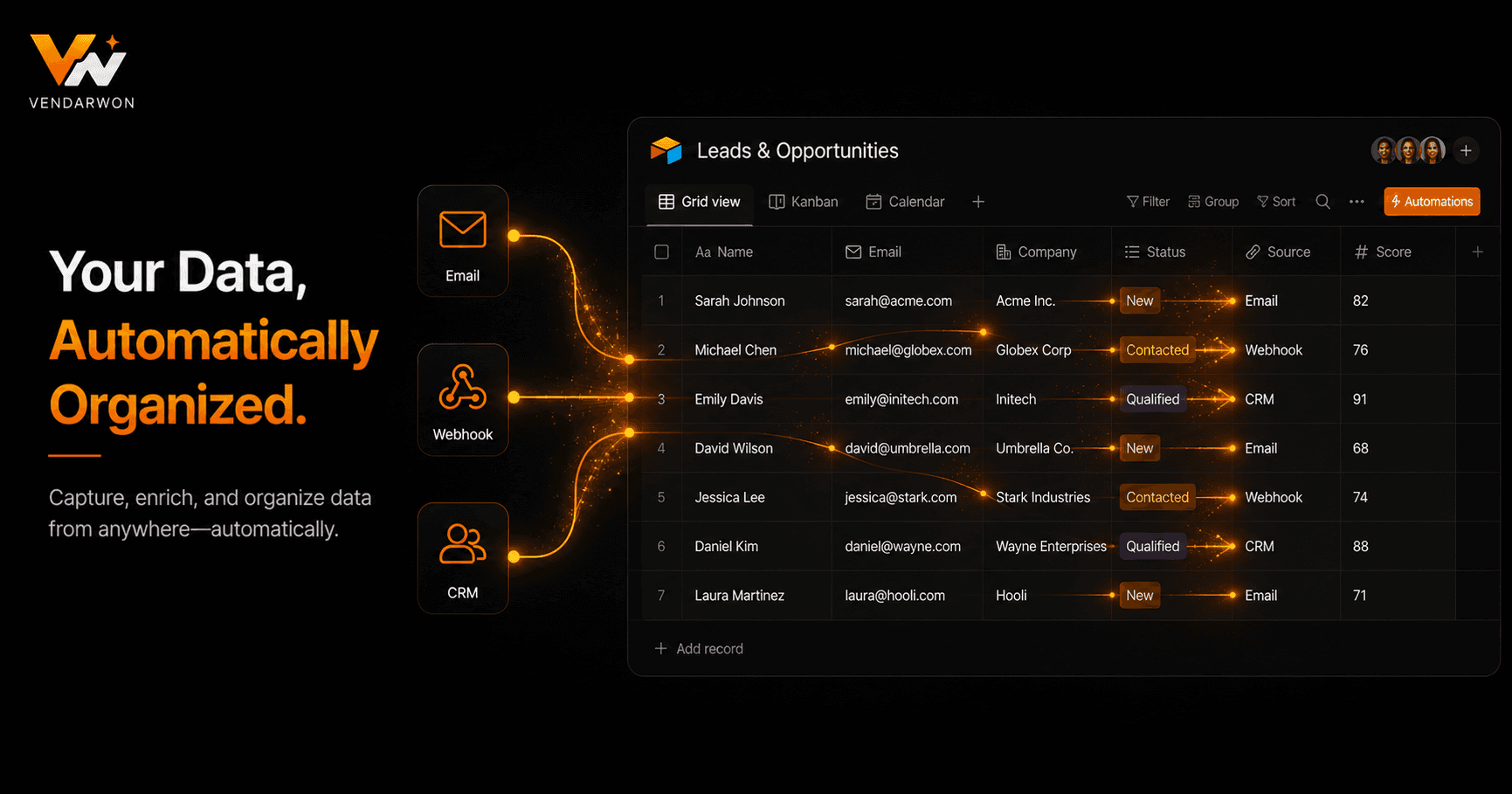
Google Sheets is the world's most widely used data tool — and it's far more powerful than most people realise when connected to automation. Turn it into a live data hub that automatically captures form submissions, tracks CRM activity, monitors inventory, logs executions, and sends Slack notifications — all without opening the spreadsheet yourself.
Google Sheets as an Automation Hub
Most teams use Google Sheets as a static document — something you open, manually update, and save. The automation-powered version is fundamentally different: Sheets becomes a live database that updates itself in real time as events happen across your tools. A new lead submits a form: a row appears. A deal closes in your CRM: the client row updates. An order ships: the tracking column populates. You never open Sheets to enter data — you open it to read data.
This shift is valuable because Sheets is universally accessible, requires no special training, and is already where many teams prefer to view and analyse data. By automating the data entry layer, you get the best of both worlds: the reliability of automated data capture and the familiarity of spreadsheets.
The Google Sheets API: Core Operations
Google Sheets API v4 supports reading ranges, appending rows, updating specific cells, and creating new sheets. The most common automation operations are spreadsheets.values.append (add a row at the end of a range) and spreadsheets.values.update (update specific cells by row/column reference). For reads, spreadsheets.values.get returns the contents of a range.
Authentication uses Google OAuth 2.0 — the same credentials you use for Gmail and Google Calendar. If you've already connected Google to your automation platform, Sheets is available without additional setup. When using Vendarwon Flow, Google Sheets is one of the natively integrated tools, meaning you can add a “Append row to Google Sheet” step to any workflow in seconds.
Capturing Form Submissions
Google Forms natively writes to a linked Sheet — but only to that Sheet, and only with Google Forms data. For form submissions from other tools (Typeform, Tally, your website contact form), automation handles the routing. The trigger fires when a form is submitted, your workflow maps the fields to the right columns, and a new row appears in your Sheet instantly.
This pattern is particularly useful for multi-step workflows: the form submission triggers not just the Sheet row creation, but also a Slack notification to your team, a CRM lead record creation, and a confirmation email to the submitter — all from the same trigger event.
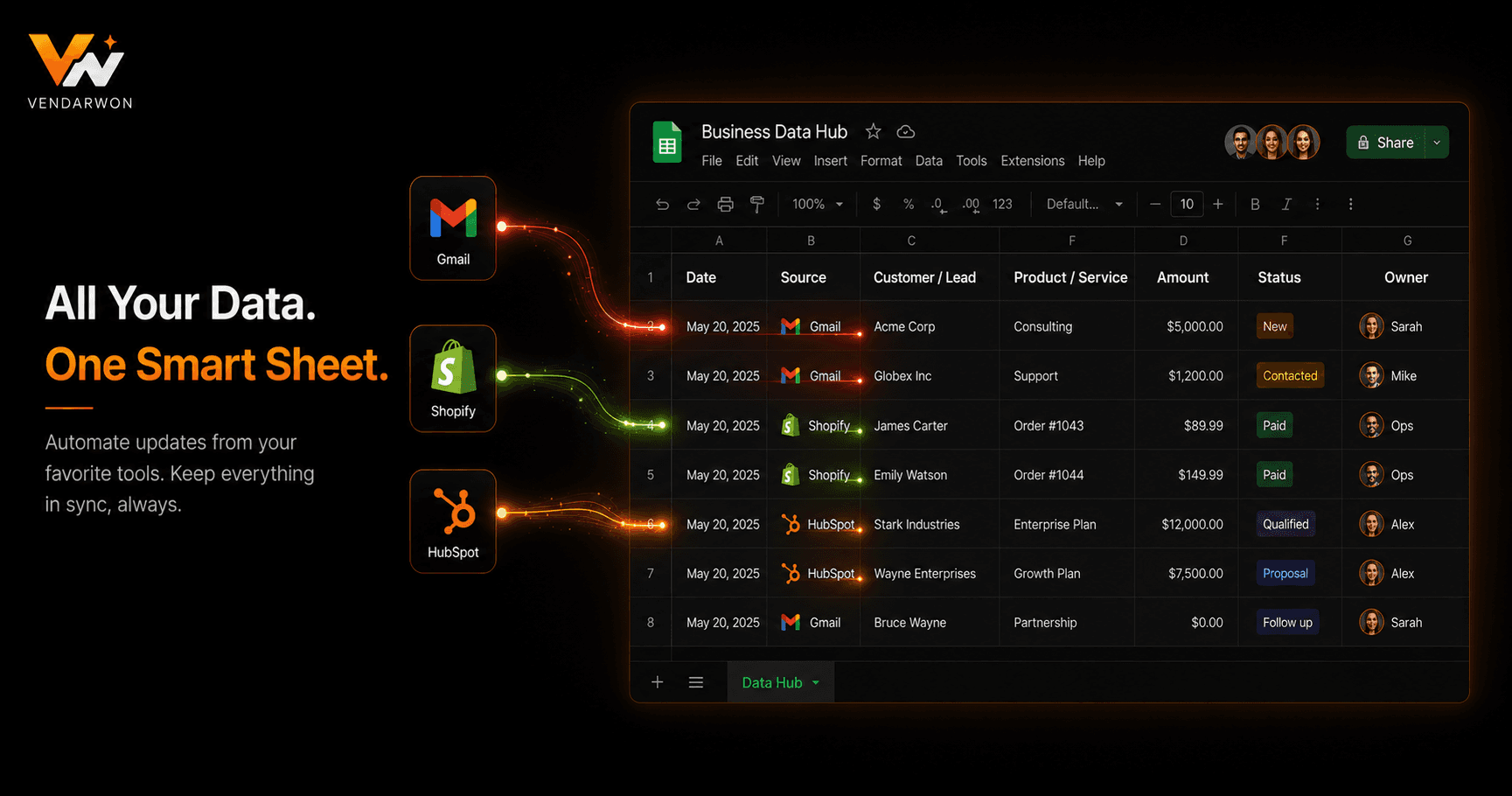
Google Sheets as a data hub: form submissions, CRM events, and scheduled reports all flow into and out of the same spreadsheet automatically
Logging CRM and Sales Events
Sales teams often want a live deal log in Sheets alongside their CRM. When a deal stage changes in HubSpot or Pipedrive, your automation appends a row to a Sheets-based deal log with the deal name, old stage, new stage, owner, and timestamp. This creates a running history of pipeline activity that's easy to analyse and share with leadership — without replacing the CRM.
For companies that don't yet have a CRM, a Google Sheet-based CRM powered by automation (form submissions create rows, email engagement updates fields, follow-up timestamps populate automatically) can handle the needs of a small sales team remarkably well.
Triggering Actions From Sheet Changes
Automation doesn't just write to Sheets — it can read from them too, and trigger actions based on Sheet data. A daily scheduled workflow can scan a Sheet for rows where a “follow-up date” column equals today, then send personalised emails to each contact in those rows. Another workflow can monitor an inventory Sheet for rows where quantity falls below a threshold, then send a reorder alert to your supplier.
For change-triggered actions (fire when a cell value changes), Google Sheets Apps Script can call a webhook, which your automation platform receives as a trigger. This bridges the gap between Sheets' native change events and your external automation workflows.
Building Automated Reports
A particularly powerful use of Sheets automation is scheduled reporting. Every Monday morning, a workflow reads specific ranges from your data Sheets, performs calculations (sum of sales by region, count of open issues by priority, average response time), and either formats a new summary Sheet or sends the data directly to Slack or email as a formatted digest. Leadership gets the weekly numbers they need without anyone manually compiling them.
Cross-Sheet and Cross-Spreadsheet Operations
Complex organisations often have multiple Sheets that need to stay in sync. Your automation can act as the sync layer: when a record is updated in one Sheet, find and update the corresponding row in another. This is useful for keeping department-level Sheets in sync with a master Sheet, or for propagating approved records from a review Sheet to a published Sheet.
FAQ
Can Google Sheets trigger automations directly?
Not natively via webhook. The standard approach is to use Google Apps Script to detect changes and fire a webhook to your automation platform. Alternatively, use a polling trigger that checks the Sheet every few minutes for new or changed rows.
What are the rate limits for the Google Sheets API?
The Google Sheets API allows 300 requests per minute per project and 60 requests per minute per user. For most automation workflows, this is sufficient. For bulk operations (appending hundreds of rows), use batch requests to stay within limits.
Can I format cells (colours, bold, borders) via automation?
Yes, using the spreadsheets.batchUpdate method with formatting requests. This is useful for automated dashboards where you want to highlight cells that exceed thresholds or colour-code status columns automatically.
How do I update a specific row rather than always appending?
Read the Sheet to find the row matching your unique identifier (email, order number, etc.), note the row number, then use spreadsheets.values.update with the exact range (e.g., Sheet1!A5:F5) to update that row's values.