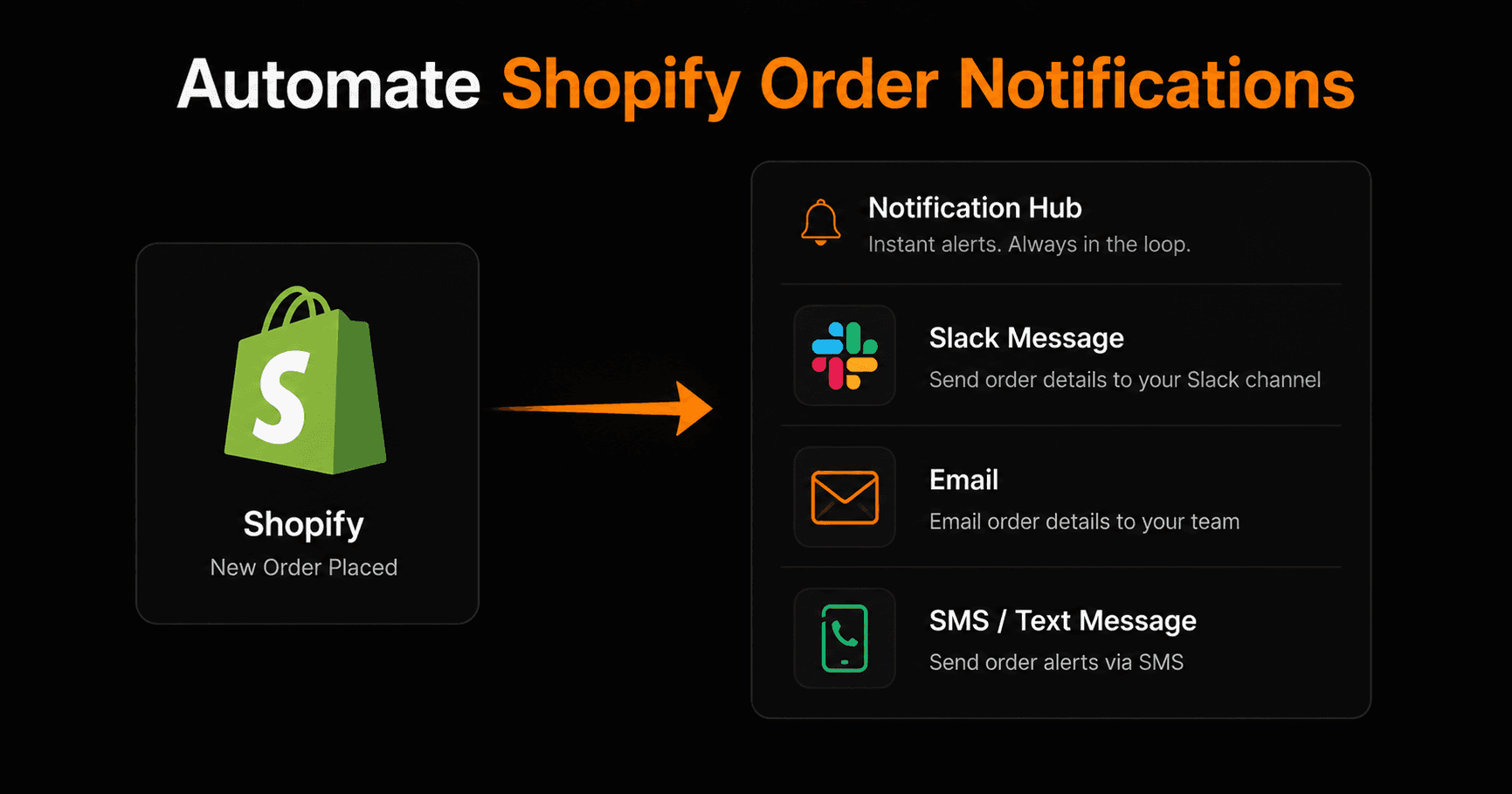
Every Shopify store owner has been there — you're away from your desk and you wonder if any orders came in. Or you're with a customer and miss a high-value order that needed urgent action. Here's how to get instant notifications for every Shopify order — in Slack, email, or SMS — set up in under 5 minutes.
Why you need automated order notifications
Shopify sends order confirmation emails to customers automatically. But those don't notify you or your team in real time. The options built into Shopify are limited — basic email alerts that go to a single address, with no way to route different order types to different people or channels.
With Vendarwon Flow, you can:
- Send instant Slack messages to your #orders channel for every new order
- Email your fulfillment team with order details automatically
- Send SMS alerts for high-value orders over a threshold
- Route international orders to a different channel than domestic orders
- Alert different team members based on product category
How it works
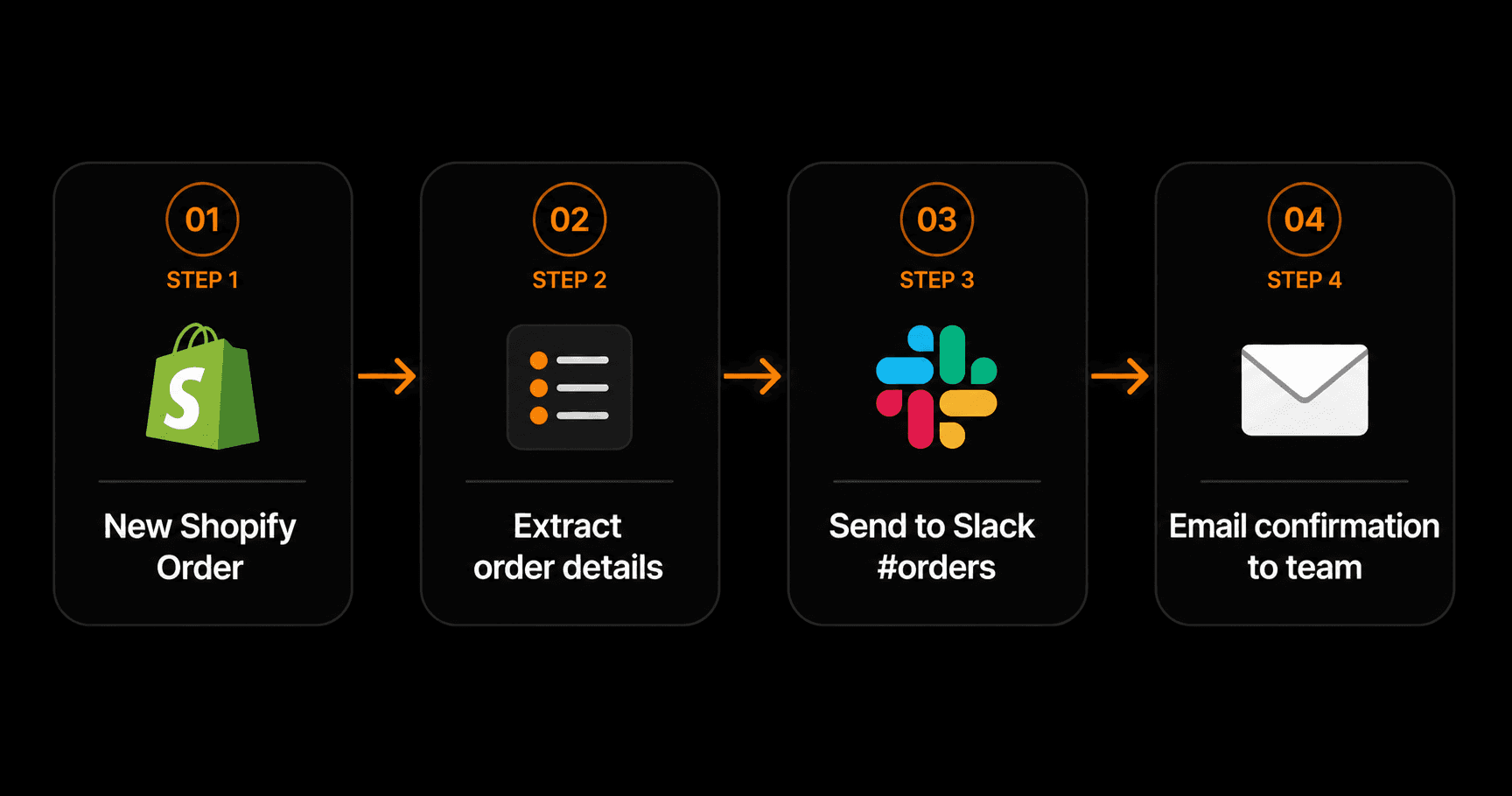
Four steps, under 2 minutes to set up: new order → extract details → Slack → email.
The workflow has four steps:
- Trigger: New Shopify Order. The moment a new order is placed, Vendarwon Flow picks it up via webhook — typically within seconds.
- Extract order details. Customer name, email, order number, product(s), quantity, total, shipping address — all available as template variables for the next steps.
- Send to Slack #orders. A formatted message fires to your chosen Slack channel: “🛒 New order #1042 — Jane Smith · 2x Air Max · $214.00”
- Email confirmation to team. A detailed email with full order info goes to your fulfillment team or operations address automatically.
Setting it up on Vendarwon Flow
- Connect Shopify. Go to Integrations, click Shopify, and enter your store URL and API credentials. Takes about 2 minutes.
- Connect Slack (and/or email). Authorize your Slack workspace and the channels you want to use.
- Describe the workflow. Type: “When a new Shopify order comes in, send the customer name, order number, and total to #orders in Slack, and email the details to orders@mystore.com”
- Activate. The workflow goes live immediately. Test it by placing a test order in Shopify.
Advanced variations
High-value order alerts
Add a condition node: if order total is over $200, send an additional notification to the #vip-orders channel and @mention the sales manager. Regular orders go to the standard #orders channel.
International order routing
Check the shipping country. If it's outside your primary region, route the notification to your international fulfillment team instead of the standard channel.
Product-specific alerts
If an order contains a specific product (a limited edition item, a pre-order, or a product that requires special handling), fire an additional alert to the relevant team.
Abandoned cart follow-up
Combine with Shopify's abandoned checkout webhook to fire a Slack alert when a high-value cart is abandoned — so your team can reach out manually if it makes sense.
What the Slack message looks like
You can format the message however you want. A typical order notification looks like:
🛒 New order #1042
Customer: Jane Smith (jane@example.com)
Items: 2x Nike Air Max (Size 10)
Total: $214.00
Ships to: London, UK
All fields are pulled dynamically from the Shopify order data.
Frequently asked questions
How fast do notifications arrive after an order is placed?
Shopify sends a webhook the moment an order is placed. Vendarwon Flow processes it within seconds. Most notifications arrive in Slack within 5–10 seconds of the order.
Does this work with Shopify free and paid plans?
Yes — Shopify webhooks are available on all Shopify plans including Basic. You just need API access, which is enabled in your Shopify admin under Settings → Apps → Develop apps.
Can I get notifications for other Shopify events — not just new orders?
Yes. Vendarwon Flow supports Shopify webhooks for order updates, fulfillment events, refunds, new customers, and inventory changes. Build separate workflows for each event type.
Can I send SMS notifications instead of Slack?
Yes — connect Twilio in Vendarwon Flow and use an SMS action instead of (or in addition to) the Slack action. Note: Twilio requires business verification for production SMS sending.