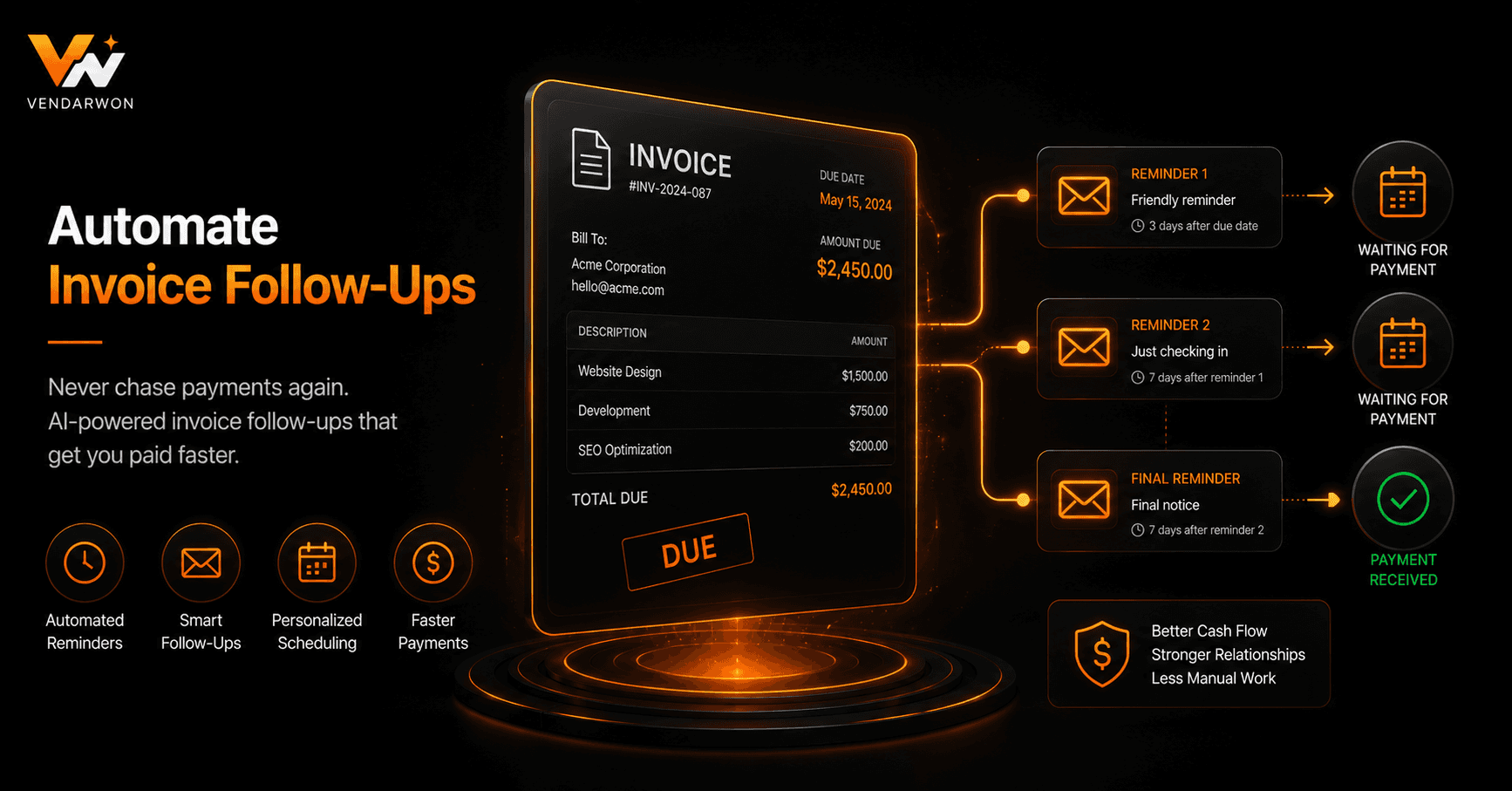
Late payments are one of the biggest cash flow killers for small businesses and freelancers. The average invoice is paid 8 days late, and 20% of invoices require at least three follow-up touches before payment. Chasing payments manually is time-consuming, awkward, and easy to forget. An automated invoice follow-up sequence handles all of it — sending friendly reminders, escalating overdue invoices, and logging every interaction — while you focus on the actual work.
Why Manual Invoice Follow-Up Fails
The problem with manual follow-up isn't just time — it's inconsistency. When you're busy, chasing invoices slips. When you're stressed about cash flow, your follow-up tone gets slightly off. When you have 15 outstanding invoices from different clients, tracking which ones need a nudge today becomes its own job. Automation eliminates all three problems: it's always consistent, always on time, and always the right tone.
A well-designed sequence also removes the social awkwardness. You're not personally chasing a client — the system is. This makes it easier to be both firm and friendly, which is the optimal tone for getting paid without damaging the relationship.
Designing Your Follow-Up Sequence
A four-step sequence works for most businesses. The first email fires 3 days before the due date — a friendly heads-up that the invoice is coming due, including a payment link. This is not a reminder for overdue payment; it's a proactive courtesy that also eliminates the “I forgot about it” excuse.
The second email fires on the due date itself if unpaid: “Your invoice #1042 for $2,400 is due today.” Still friendly, still direct. The third email fires 7 days overdue with a slightly firmer tone, noting that the invoice is now past due and requesting confirmation of the payment timeline. The fourth email, sent 21 days overdue, is more formal — noting that the matter may need to be escalated and providing a final payment deadline.
Setting Up the Automation Trigger
Your trigger depends on your invoicing tool. If you use QuickBooks, FreshBooks, or Xero, these platforms emit webhooks when invoice status changes — including when an invoice is created and when its due date passes without payment. Alternatively, you can store invoice data in a Google Sheet or Airtable and use a daily scheduled trigger that checks for invoices with upcoming or passed due dates.
The critical field is payment status. Your workflow must check whether an invoice has been marked paid before sending each follow-up. If payment is recorded, cancel all remaining steps in the sequence immediately. Nothing damages a client relationship faster than receiving a payment reminder after you've already paid.
Writing Follow-Up Emails That Actually Work
The tone of your follow-up emails matters enormously. Early reminders should assume good faith — the client is busy, not dishonest. Use subject lines like “Invoice #1042 — due in 3 days” rather than “URGENT: Payment overdue.” Include the invoice number, amount, due date, and a one-click payment link in every email.
As the sequence progresses and the invoice ages, your tone can become more formal. By the fourth email, it's reasonable to mention that you may need to pause work on the project or escalate to a collections process. This isn't threatening — it's honest business communication.
Escalation: When Automation Isn't Enough
If the fourth automated email doesn't produce payment, the workflow should escalate to a human action. This might mean posting a Slack alert to yourself or your accounts team, creating a task in your project management tool, or triggering a more personalised email that you send manually. The automation has done its job up to this point; now a human relationship conversation is needed.
For enterprise clients, you might also have a parallel track that alerts the account manager (not just the accounts team) when an invoice goes 30+ days overdue — preserving the relationship layer while the billing process runs separately.
Logging Every Interaction
Every follow-up email sent should be logged. At minimum, log the invoice number, email sent, timestamp, and payment status at time of sending. This creates an audit trail that protects you in any payment dispute. If a client claims they never received a reminder, you have a timestamped record of every touch.
Your automation can append each event to a Google Sheet or Airtable base automatically. This also gives you data to optimise — you can see which step in the sequence generates the most payments, and whether certain client segments pay faster after specific email styles.
Integrating With Your Accounting Software
If your automation platform reads invoice status from your accounting software, make sure the integration is bidirectional: the automation reads payment status to decide whether to send the next follow-up, and writes a note to the invoice record each time an email is sent. Most major accounting platforms (QuickBooks, Xero, FreshBooks) support both reads and writes via their APIs.
FAQ
What if a client pays in instalments?
Treat each instalment as a separate invoice with its own due date and follow-up sequence. Most accounting platforms support split payment schedules natively, and your automation trigger should fire on each individual payment milestone.
How do I handle clients who always pay late but are otherwise good clients?
You can create a separate sequence for known late-payers with an earlier first reminder (5–7 days before due date) and more persistent follow-ups. Tag these clients in your CRM and have your automation apply the right sequence automatically based on the tag.
Can I personalise the emails with the client's name and project details?
Yes — and you should. Dynamic fields pulled from your invoice data (client name, invoice number, project description, amount, due date, payment link) make the emails feel personal even though they're fully automated. Generic-looking invoice reminders are more likely to be ignored.
Should I use email, SMS, or both?
Email is standard for invoice reminders. SMS can be added as a final nudge for invoices 30+ days overdue, but should only be used if the client has consented to SMS communication. Never send automated payment demands via SMS without prior consent.